



How your Geo-Game works
You place stations, add messages or quizzes, then share the QR code or link. The game link belongs to the players first.
Guide for desktop and laptop
The desktop view shows more at once: map, fields, and preview are easy to check side by side.


Set route and order
Place the pins in the walking order you want. Numbered stations are waypoints, and the final station labelled “Ziel” is the finish.

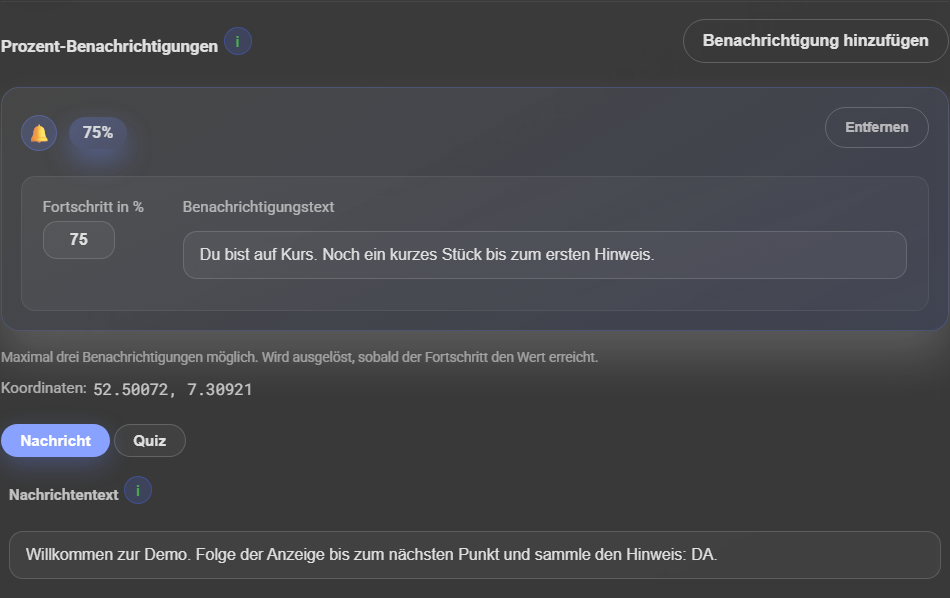
Configure a waypoint
A waypoint appears during the route when players arrive there. Choose message or quiz and optionally show progress notifications before arrival.


Configure the finish
At the finish, the final task appears: optional quiz, secret code, and later the solution word. Put everything here that should only be visible at the end.


Share the game
After saving, share the QR code or link. Important: do not open the player link yourself, otherwise start and progress can be set.


What players see
Players see progress, distance, and the next step. Waypoint content and final final message appear only at the right moment.
Guide for smartphone
On mobile, the same steps are stacked. The images show where to scroll and what players see later.
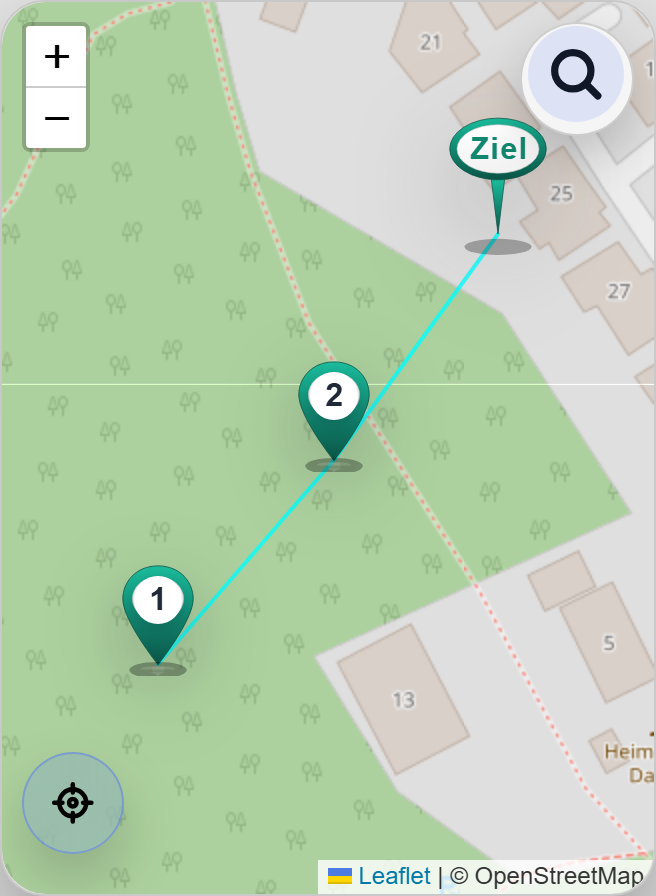
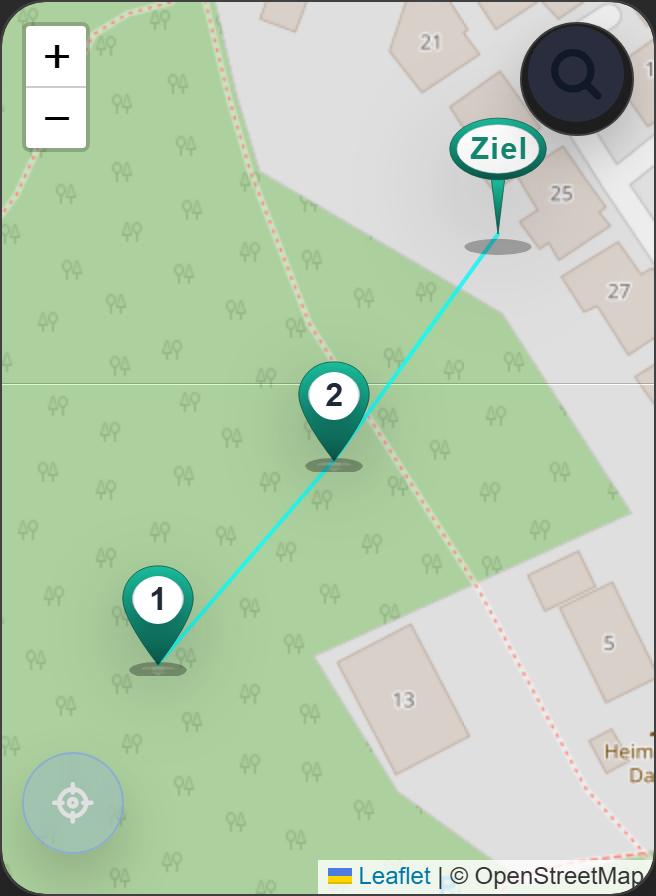
Set route and order
Place the pins in the walking order you want. Numbered stations are waypoints, and the final station labelled “Ziel” is the finish.

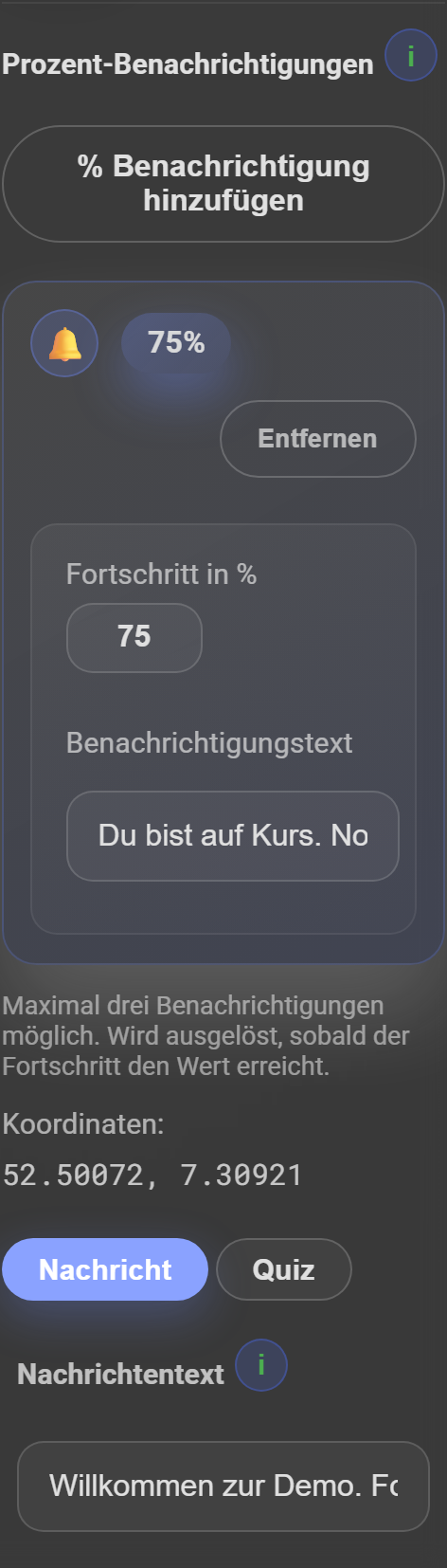
Configure a waypoint
A waypoint appears during the route when players arrive there. Choose message or quiz and optionally show progress notifications before arrival.


Configure the finish
At the finish, the final task appears: optional quiz, secret code, and later the solution word. Put everything here that should only be visible at the end.


Share the game
After saving, share the QR code or link. Important: do not open the player link yourself, otherwise start and progress can be set.

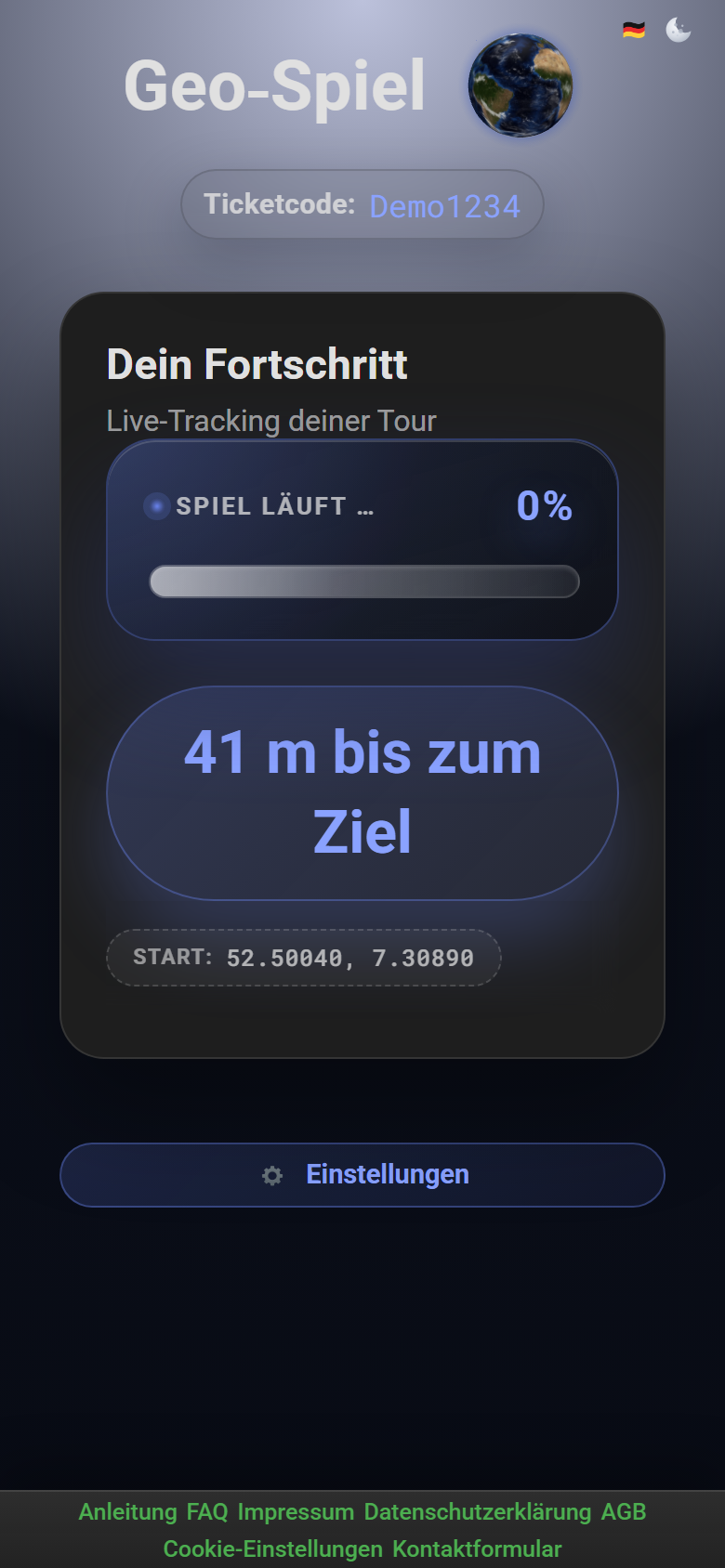
What players see
Players see progress, distance, and the next step. Waypoint content and final final message appear only at the right moment.
Creator checklist
The practical create game flow from ticket to shareable game.
-
Secure the ticket code and open the create game.
-
Place stations, check the order, and position the final station clearly.
-
Choose message, quiz, or finale per station and add the content.
-
Use notifications, hints, and secret code parts only where they truly help.
-
Carefully review finale, final quiz, secret code, and final message in the create game; leave the real final message untouched.
-
Share QR code and link without opening them as a player yourself; the recipient starts the first real run.
Prepare
A clear guide for creators and players - no app install, directly in the browser.
Define the start, finish, and planned order of your waypoints.
Place the final station where the finale, gift, meetup, or final message should happen.
Plan short messages, hints, or small tasks for individual stops.
Create quiz questions with clear answers, tips, and optional cooldown.
Collect QR codes, links, images, or PDFs if you want to show extra material.
Content per stop
Each station can inform, ask a riddle, or prepare the finale.
Message
Best for welcome text, directions, photo tasks, hints, or a short story beat.
Quiz
Best for riddles, check questions, and playful stops with a correct answer.
Finale
The finale combines an optional final quiz, secret code entry, and your final message.
Share, review, and support
Review the configuration in the create game before sharing. The game link itself is for the recipient.
-
Check stations, order, texts, quiz questions, notifications, secret code, and final message in the configuration, not through the game link.
-
Create the QR code or link only after the configuration is ready, and do not open that game link yourself afterward.
-
Give the ticket code and game link only to the person or group that should actually start the game.
-
Use notifications sparingly so they help instead of distracting.
-
For later changes, use the configuration or edit view instead of the player start.
Player flow
This is how players experience the route from shared link to final final message.
-
01
Invitation: open the link or QR code and keep the ticket code ready.
-
02
Start: allow location access so map, direction, and distance work correctly.
-
03
Orientation: map, stations, and distance display lead to the next target.
-
04
Approach: notifications appear when a target is almost reached.
-
05
Stop: read the message, complete the task, or answer the quiz question.
-
06
Hints: collect secret code parts or important information along the way.
-
07
Finale: solve the optional final quiz and enter the secret code.
-
08
Final message: final message, place, password, or gift hint appears.
Precise location for players
The Geo-Game needs the precise device location of the player smartphone. Approximate location is not enough because targets and distances can otherwise be calculated incorrectly.
Why precise?
The distance to the next target is calculated directly in the browser. Location services, internet access, and permission for precise location therefore need to be enabled.
Android, Chrome, Edge, Firefox, or Samsung Internet
Open Android Settings, go to Location and App permissions, choose the browser you use, and enable location access plus Use precise location. Then reload the game page.
iPhone or iPad with Safari
Open Settings, Privacy & Security, Location Services, choose Safari Websites or the browser you use, and turn on Precise Location. Then reload the game page.
PC, Mac, or laptop
Allow location access in the browser and also in the operating system. On Windows: Settings, Privacy & security, Location. In Chrome, Edge, or Firefox, also allow dalum.de in site location permissions.
Changed from approximate to precise?
After changing the setting, wait briefly, keep GPS and Wi-Fi enabled, and reload the game page. Outdoors, the first precise fix is usually more reliable than inside buildings.
On game day
This keeps the game understandable even if questions come up on the route.
On game day, do not open the link yourself beforehand; the recipient starts and sets the start coordinates.
Briefly explain that location access and a stable internet connection matter.
If problems appear, reload the map first and check location permission.
If a station feels inaccurate, refine the task or hint in the create game.
Keep secret code and final message as background information in case the recipient needs support at the finale.
After the game, note which stops worked well and what should be adjusted.
Short quality checks
These points help you avoid configuration mistakes without triggering the one-time player flow of the ticket code.
Keep station names, tasks, and hints short enough for small screens.
Review station positions, order, texts, quiz questions, notifications, secret code, and final message directly in the create game or configuration view.
Do not open the game link you will share later: opening it can set start coordinates and save progress.
Finale and final message
After the correct secret code, your final message appears for the recipient. Use it for the final message, next location, password, gift hint, or a personal closing note.
Try the demo
You can create or directly open a demo game with ticket code Demo1234. The demo can be changed by all visitors and is only meant for testing.